
IPTV parental controls: keeping kids safe on IPTV Smarters Pro
IPTV parental controls let you lock grown-up content behind a PIN so children can enjoy their own programmes safely. This guide shows how to set them up in IPTV Smarters Pro, how to cover every device in the house and which extra settings close the gaps.
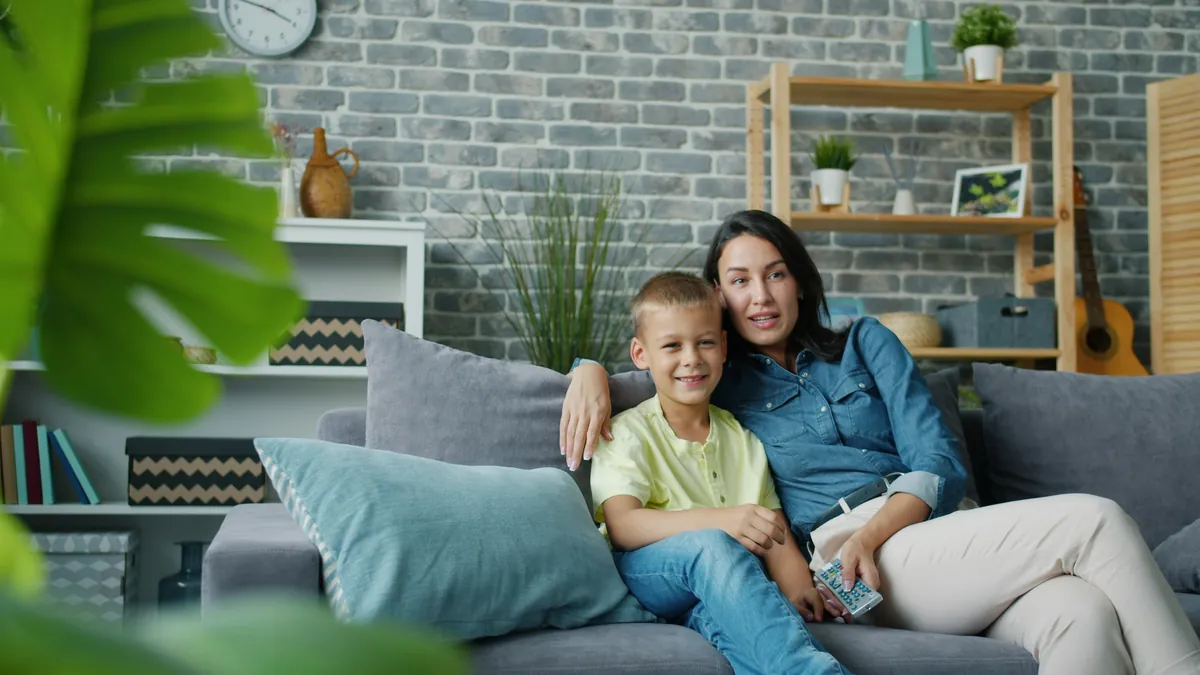
How IPTV parental controls work
An IPTV subscription gives the whole household access to the same live channels, films and series. That is great for adults, but it means children can browse everything too. IPTV parental controls solve this inside the player app rather than on the provider’s side.
In IPTV Smarters Pro, parental control works by category. You create a PIN, then choose which categories in Live TV, Movies and Series to lock. A locked category stays visible in the menu but asks for the PIN before it opens. Everything else plays as normal.
Three points are worth knowing from the start:
- Settings are per device. Locking categories on the living room TV does not lock them on a tablet.
- Category names come from your IPTV service. Content is grouped by the provider, so check the list on your own account; see how the IPTV service organises live TV and VOD.
- The app is one layer. Device restrictions and supervision fill the gaps.
Set up parental control in IPTV Smarters Pro
The steps are the same on a Smart TV, Fire TV Stick, Android box, phone or tablet, although menu labels can differ slightly between app versions.
- Open the app’s settings. Log in to IPTV Smarters Pro with your IPTV subscription, then open Settings from the home screen (usually the gear icon).
- Choose Parental Control. Select the Parental Control option. The first time, you will be asked to create a PIN or password.
- Set a PIN only adults know. Enter a PIN that is not a birthday or 1234, confirm it and write it somewhere safe away from the TV.
- Lock categories. Go through the Live TV, Movies and Series tabs and tick each category you want to lock. Locked categories then need the PIN before they open.
- Save and test. Save your changes, go back to the home screen and try to open a locked category to check that the PIN is requested.
- Repeat on every device. Parental control settings are stored in the app on each device, so set them up on every TV, stick, tablet and phone children use.
Tip: if a newly added category appears after a playlist refresh, it will not be locked automatically. Revisit the parental control screen every so often and lock anything new.
To change or remove the PIN later, go back to the same parental control section; the app will ask for the current PIN first. If you forget it, clearing the app’s data or reinstalling usually resets it, but this also removes your saved login, so keep your Xtream Codes details safe.
What to lock
Every household draws the line differently. As a starting point, many parents lock these types of category:
| Section | Typically locked | Usually left open |
|---|---|---|
| Live TV | Adult, late-night and mature entertainment categories | Kids, family and documentary categories |
| Movies | Horror, thriller and age-restricted film categories | Family, animation and kids’ films |
| Series | Drama and crime categories aimed at adults | Children’s and family series |
| Catch-up | Locked alongside its live category | Kids’ channels with catch-up |
Categories are broad, so a family film category may still contain the odd title rated higher than you would like. Check age ratings shown in the app or online before younger children watch something new.
Think about age as well as content. What suits a seven-year-old is very different from what suits a fifteen-year-old, and a single set of locks on the family TV rarely fits both. A practical approach is to keep the main TV fairly strict, because it is the one younger children use most, and give older children their own device with a slightly lighter set of locks. Talk to them about why certain categories are locked; children who understand the rules are far less likely to go looking for ways around them.
Live sport and news can also show upsetting scenes without warning. For very young children, sticking to dedicated kids’ categories and on-demand children’s programmes gives you the most control over what appears on screen.
Add device-level protection
App PINs are strongest when combined with the restrictions built into each device. These stop children installing new apps, changing settings or simply clearing the app to remove the PIN.
- Fire TV Stick: Fire OS has its own parental controls with a PIN in the device settings. Use it to require a PIN for purchases and app launches.
- Android TV and Google TV: set up a kids’ profile or restricted profile where available, and limit which apps it can open.
- iPhone and iPad: use Screen Time to set content and app restrictions and stop app deletion. Our iOS installation guide covers installing Smarters Player Lite on iPad.
- Smart TVs: Samsung and LG TVs include programme rating and app lock options in their settings; descriptions vary by model.
- Broadband: UK broadband providers offer free family filters that work across the home network.
If you are choosing hardware for a child’s room, our guide to the best device for IPTV in the UK covers which options are simplest to manage.
Good habits for family viewing
- Keep the PIN private. Change it if you think a child has seen you type it.
- Lock settings too. Where the device allows it, protect settings so the PIN cannot be bypassed by clearing app data.
- Use a dedicated device for younger children. A tablet with only kids’ categories unlocked is easier to manage than the main TV.
- Watch screen counts. A child watching on a tablet uses one of your plan’s screens. On a one-screen plan, that can stop playback on the main TV. Our guide to multi-screen IPTV subscriptions explains how this works.
- Review every few months. Check locked categories after app updates or playlist changes.
Need help? Our English-speaking WhatsApp support aims to reply within 15 minutes and can walk you through the parental control screen on your device.
A TV Licence is required in the UK to watch or record live TV as it is broadcast. You are responsible for making sure your viewing complies with UK law and the terms of the relevant rights holders.
IPTV parental controls FAQ
Does IPTV Smarters Pro have parental controls?
Yes. IPTV Smarters Pro has a parental control section in its settings where you set a PIN and choose which Live TV, Movies and Series categories to lock. Menu wording can vary slightly between versions.
Do parental controls apply to all my devices?
Usually not. The settings are saved in the app on each device, so you need to set them up separately on every TV, Firestick, tablet and phone that children use.
Can I lock individual channels instead of whole categories?
In IPTV Smarters Pro, parental control works mainly by category. For finer control, use the device’s own restrictions, keep children on a separate device or profile, or ask support whether a different player suits your needs.
I forgot my parental control PIN. What can I do?
Options depend on the app version. Often the only reliable way is to clear the app’s data or reinstall it, which removes the PIN and your saved login, so keep your login details to hand before you do this.
Is the app PIN enough to keep children safe?
It is a useful layer, but not the only one. Combine it with device-level restrictions such as Fire TV or Android TV parental controls, Screen Time on iPad, supervision and your broadband provider’s family filters.
Do I need a separate IPTV subscription for my child’s tablet?
No. You can install the app on any number of devices with the same login. Your plan’s screen count limits how many can play at once: one on Essential and Premium, two on Supreme.