
Best device for IPTV in the UK: Firestick vs Android box vs Smart TV
The best device for IPTV is the one that runs your player app smoothly, stays connected and is easy for everyone at home to use. We compare the three most popular options in the UK so you can pick with confidence.
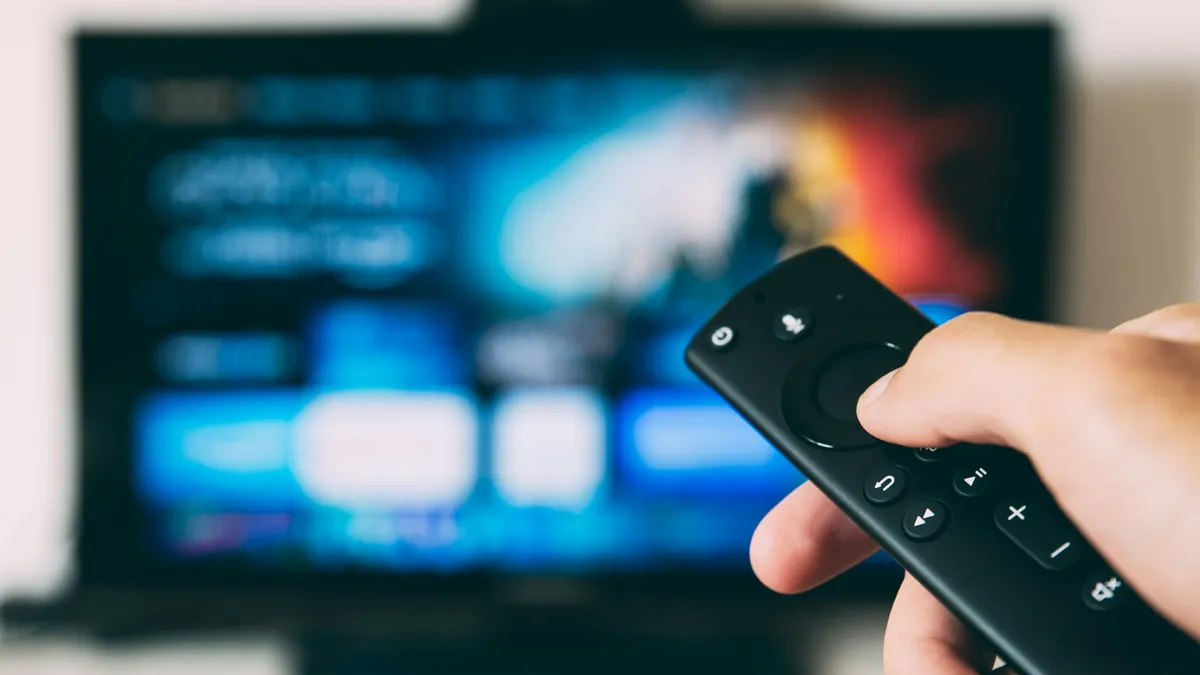
Quick comparison: the best device for IPTV
Your IPTV subscription works on all three, so the choice is really about ease of use, app support and how much control you want. Here is how they compare for a typical UK living room:
| Fire TV Stick | Android TV box | Smart TV app | |
|---|---|---|---|
| Operating system | Fire OS | Android TV / Google TV or Android | Tizen (Samsung), webOS (LG), others |
| Getting the app | Amazon Appstore or Downloader | Google Play or official download | TV’s own store; varies by model and region |
| Choice of player apps | Wide | Widest | Limited |
| Ethernet | With an adapter | Usually built in | Usually built in |
| Extra hardware | Small stick behind the TV | Separate box and remote | None |
| Best for | Most households | Enthusiasts and big libraries | Minimal set-ups on newer TVs |
Amazon Fire TV Stick
The Fire TV Stick is the most common IPTV device in the UK for good reason. It plugs into a spare HDMI port, comes with a simple voice remote and runs IPTV Smarters Pro and most other players well. It runs Fire OS, Amazon’s version of Android, so apps either come from the Amazon Appstore or are installed with the Downloader app after allowing it under Settings → My Fire TV → Developer Options → Install unknown apps.
Strengths:
- Affordable and easy to move between TVs, or take on holiday.
- Turns an older, non-smart or slow Smart TV into a capable IPTV player.
- Wide choice of apps, including IPTV Smarters Pro and TiviMate.
Weaknesses:
- Limited storage on entry-level models; clear the app cache now and then.
- No Ethernet port without an adapter, so Wi-Fi placement matters.
- Amazon’s home screen promotes its own content heavily.
Choose a 4K model if you have a 4K TV; they generally have more processing power and better Wi-Fi, which helps even on HD channels. Our Firestick installation guide walks through the whole process step by step.
Android TV box
An Android TV box is a small set-top box running Android TV, Google TV or a standard version of Android. Better models usually have more storage and memory than a stick, built-in Ethernet and extra USB ports. Certified Android TV and Google TV boxes give you the Google Play Store, where IPTV Smarters Pro and many other players are listed.
Strengths: the widest app choice, a wired connection out of the box, and enough power for large channel lists and big film libraries.
Weaknesses: quality varies hugely between brands. Cheap uncertified boxes may run outdated software, receive no security updates or come with unknown apps pre-installed. Stick to well-known, certified devices and only install apps from official stores or developers’ own websites.
Android boxes suit people who like to tweak settings, use several players or want the most stable wired set-up. The same applies to Android phones and tablets, covered in our Android guide.
Smart TV apps (Samsung, LG and others)
Using an app directly on your Smart TV means no extra box, one remote and nothing to plug in. Samsung TVs run Tizen, with apps in Smart Hub → Apps. LG TVs run webOS, with apps in the LG Content Store. TVs running Google TV or Android TV, such as many Sony, TCL and Hisense models, use the Google Play Store.
The catch is app availability. Whether IPTV Smarters Pro appears in a Samsung or LG store depends on the model, its software version and your region, and some TVs only offer alternative players such as Smart IPTV or IBO Player-type apps. Older TVs can also feel slow with large channel lists. Our step-by-step guides for IPTV on a Samsung TV and IPTV on an LG TV cover the options in detail.
Good to know: if your TV has no suitable app, or it struggles, plugging in a Fire TV Stick is usually the quickest and cheapest fix.
What really matters when choosing
Brand names matter less than a few practical factors. Before you buy, check:
- App support. Can the device install IPTV Smarters Pro or another player that accepts Xtream Codes or M3U? That is the first hurdle.
- Connection. Ethernet beats Wi-Fi for stability. If you rely on Wi-Fi, make sure the device supports 5 GHz.
- Speed per screen. HD needs about 10 Mbps, Full HD about 20 Mbps and 4K about 30 Mbps. A 4K device only helps if your line can feed it. See our internet speed guide.
- Processing power and storage. Large channel lists and TV guides load faster on devices with more memory.
- Ease of use. Who else will use it? A simple remote and a familiar home screen help the whole family.
Our recommendation by household
- Most homes: a Fire TV Stick (4K model if you have a 4K TV) with IPTV Smarters Pro.
- Newer Samsung or LG TV with a compatible app: try the built-in app first; add a stick only if needed.
- Enthusiasts and large screens: a certified Android TV or Google TV box connected by Ethernet.
- Watching around the house: add phones, tablets or laptops using the same login.
Mixing devices is completely normal. Many households use a Fire TV Stick on the main TV, the built-in app on a newer bedroom TV and a tablet for the kitchen. Your login works the same in each, and IPTV Smarters Pro looks and behaves much the same across platforms, so nobody has to learn a new layout. iPhone and iPad users install it as Smarters Player Lite from the App Store, and Windows or Mac users can use the desktop version; see our PC and Mac guide for a laptop set-up.
One practical point: whatever device you choose, keep its software and the player app up to date, and restart it every so often. Most of the slowdowns our support team sees on otherwise good hardware disappear after an update and a restart.
Remember that you can install the app on as many devices as you like, but only your plan’s screen count can play at once. If two devices will be in use at the same time, look at the two-screen Supreme plan on our IPTV subscription page.
A TV Licence is required in the UK to watch or record live TV as it is broadcast, whatever device you use. You are responsible for making sure your viewing complies with UK law and the terms of the relevant rights holders.
Best device for IPTV FAQ
What is the best device for IPTV in the UK?
For most people, an Amazon Fire TV Stick is the best device for IPTV: it is affordable, plugs into any TV with HDMI and runs IPTV Smarters Pro well. An Android TV box suits power users, and a Smart TV app suits people who want no extra hardware.
Do I need a Firestick if I have a Smart TV?
Not always. If your Samsung or LG TV offers IPTV Smarters Pro or another compatible player in its app store and runs it smoothly, you can use the TV on its own. If the app is missing or slow, a Firestick is the simplest fix.
Is a 4K Firestick worth it for IPTV?
It is worth it if you have a 4K TV and at least 30 Mbps available for that screen. The 4K models also tend to have faster processors and better Wi-Fi, which helps with menus and stability even on HD streams.
Can I use the same IPTV subscription on a Firestick and a Smart TV?
Yes. You can install the app and add your login on any number of devices. Your plan’s screen count decides how many can play at the same time: one on Essential and Premium, two on Supreme.
Should I connect my IPTV device by cable or Wi-Fi?
Ethernet is the most stable option. Many Android boxes and Smart TVs have an Ethernet port; Fire TV Sticks need an Ethernet adapter. If you use Wi-Fi, connect on 5 GHz and keep the router reasonably close.
Can I watch IPTV on a phone or laptop instead of a TV?
Yes. IPTV Smarters Pro is available for Android phones and tablets, as Smarters Player Lite on iPhone and iPad, and as a desktop app for Windows and Mac.